
Guide · Early Access
Beta testers onlyFrom technical drawing to a native Onshape feature tree
This guide walks you through the full flow, from the Onshape App Store to reviewing your model and its automatically added annotation comments inside Onshape. It is written for selected beta testers. The native feature-tree delivery is not open to every account yet.
First time here? When you arrive from Onshape without a Voluminate account, sign up in a few seconds. The Onshape connection then starts on its own.
- 1
Start from the Onshape App Store
In the Onshape App Store, open the Voluminate app and click “Go to Connected Cloud Application”.- Voluminate opens in a new tab and asks you to sign up or sign in.
- The Onshape connection then starts automatically: approve the access request in Onshape.
- You land in your Voluminate workspace, already connected.
- 2
Or connect from inside Voluminate
AlternativeSkip this if you started from the App Store.- Sign up or sign in to Voluminate directly.
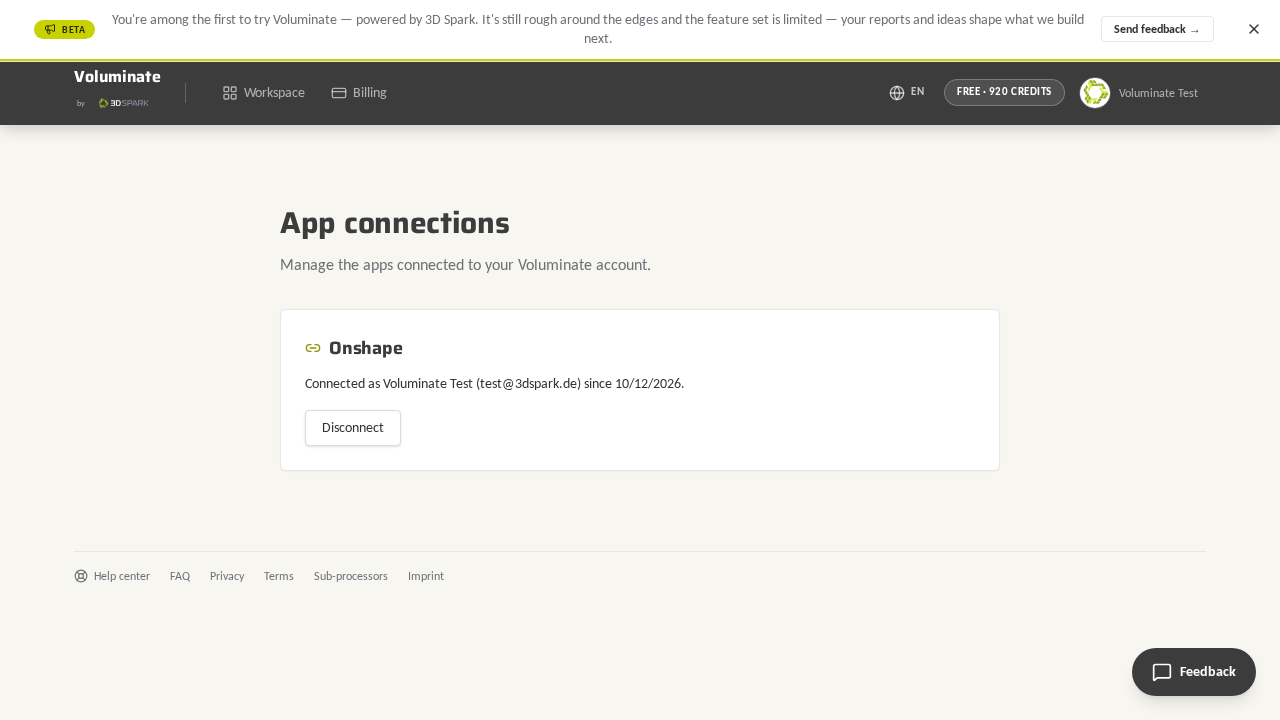
- Click your avatar in the top-right corner, choose “App connections” and click “Connect Onshape”.
- Approve the access request in Onshape.
- You return to Voluminate and see the account you are connected as.
- 3
Upload a technical drawing
In your workspace, upload a technical drawing (PDF or image). Voluminate creates a part from it.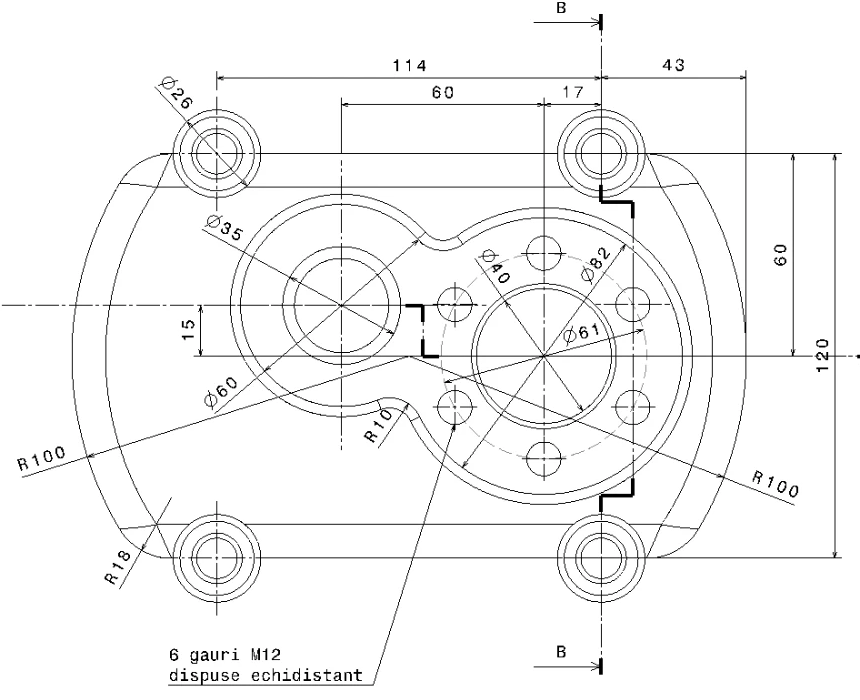
- 4
Click Convert to 3D
Open your uploaded part and click “Convert to 3D”.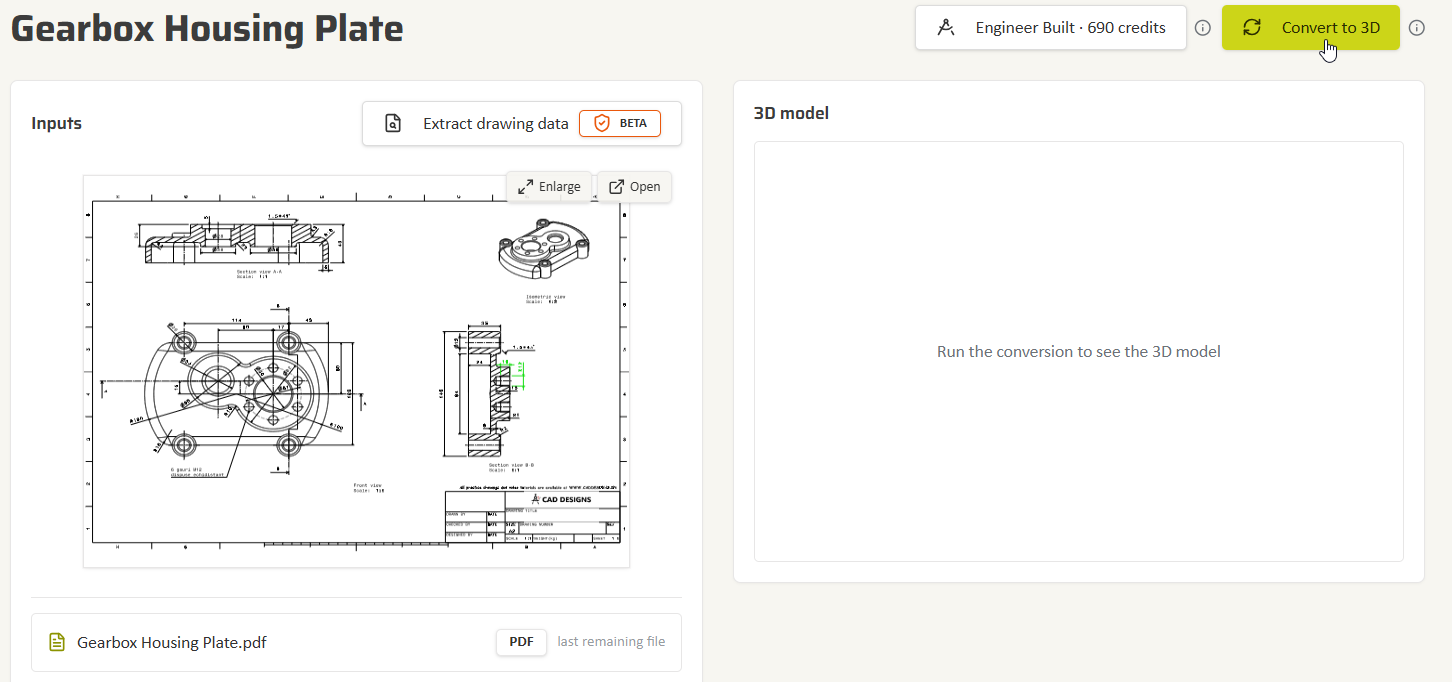
- 5
Add optional part details
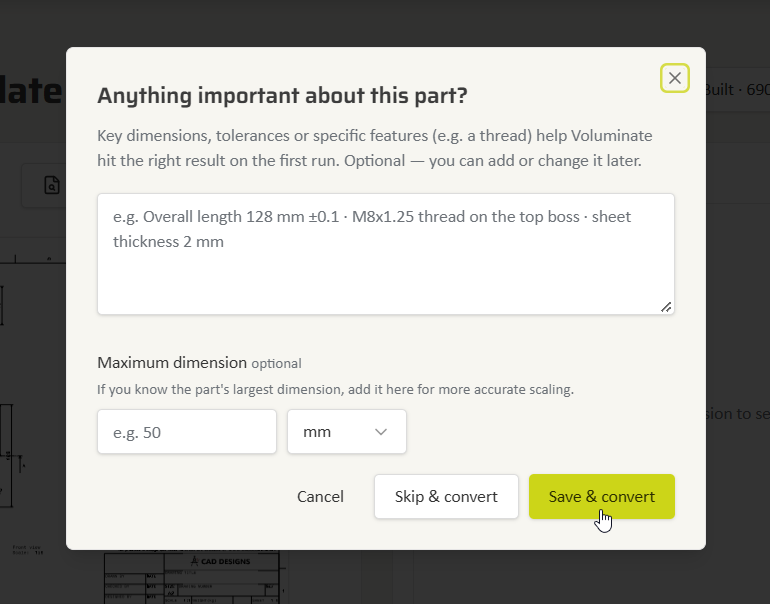
In “Anything important about this part?”, you can add details for more accurate scaling.- Key dimensions, tolerances, specific features and the maximum dimension.
- Click “Save & convert”, or choose “Skip & convert” if you have nothing to add.
- 6
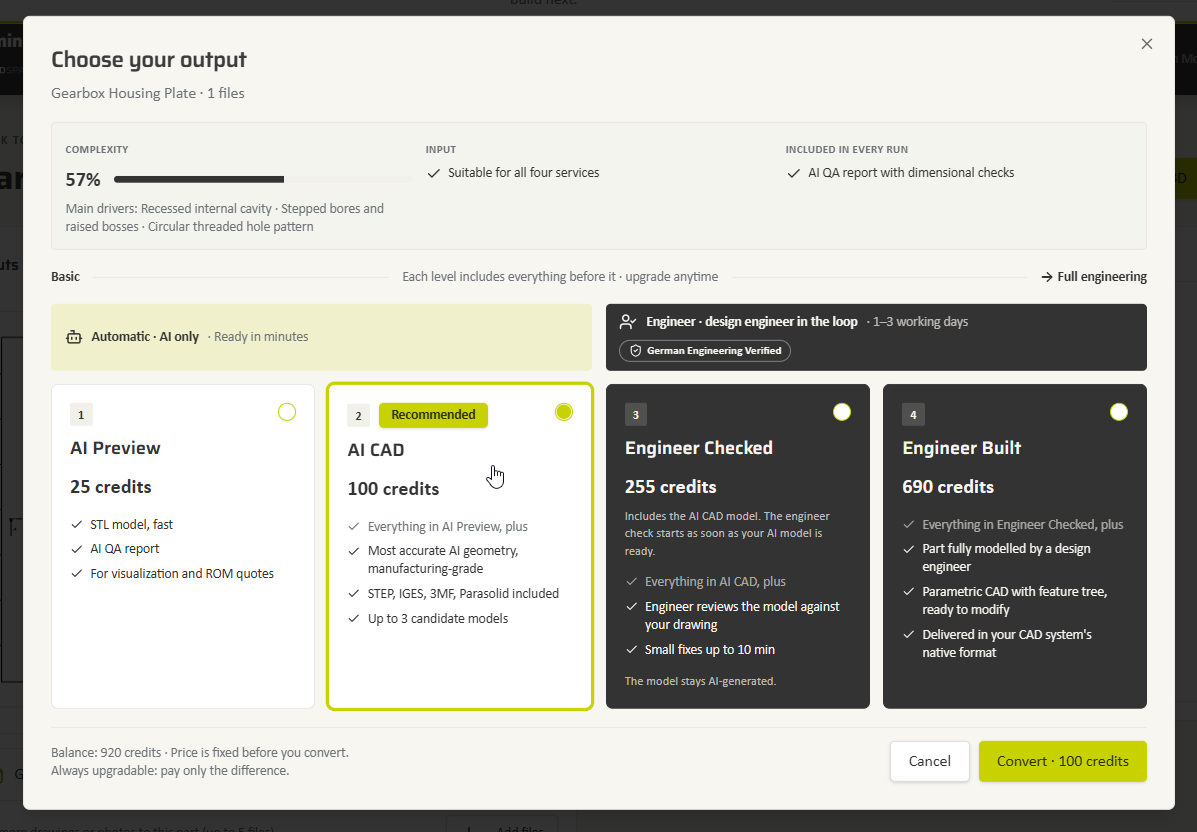
Select AI CAD and convert
In “Choose your output”, select “AI CAD” for the native Onshape feature-tree option, not “AI Preview”.- Confirm with the Convert button, which shows the price for your part.
- When the run finishes, review the candidate models.
- Native feature-tree delivery depends on the geometry; if it cannot be built natively, the automatic STEP fallback below applies.
- 7
Wait for the conversion to finish
Depending on the part's complexity, the conversion can take up to 2 hours.- You can close the window.
- You will receive an email once the conversion is complete.
- If you don't receive an email within a few hours, check your spam folder.
- 8
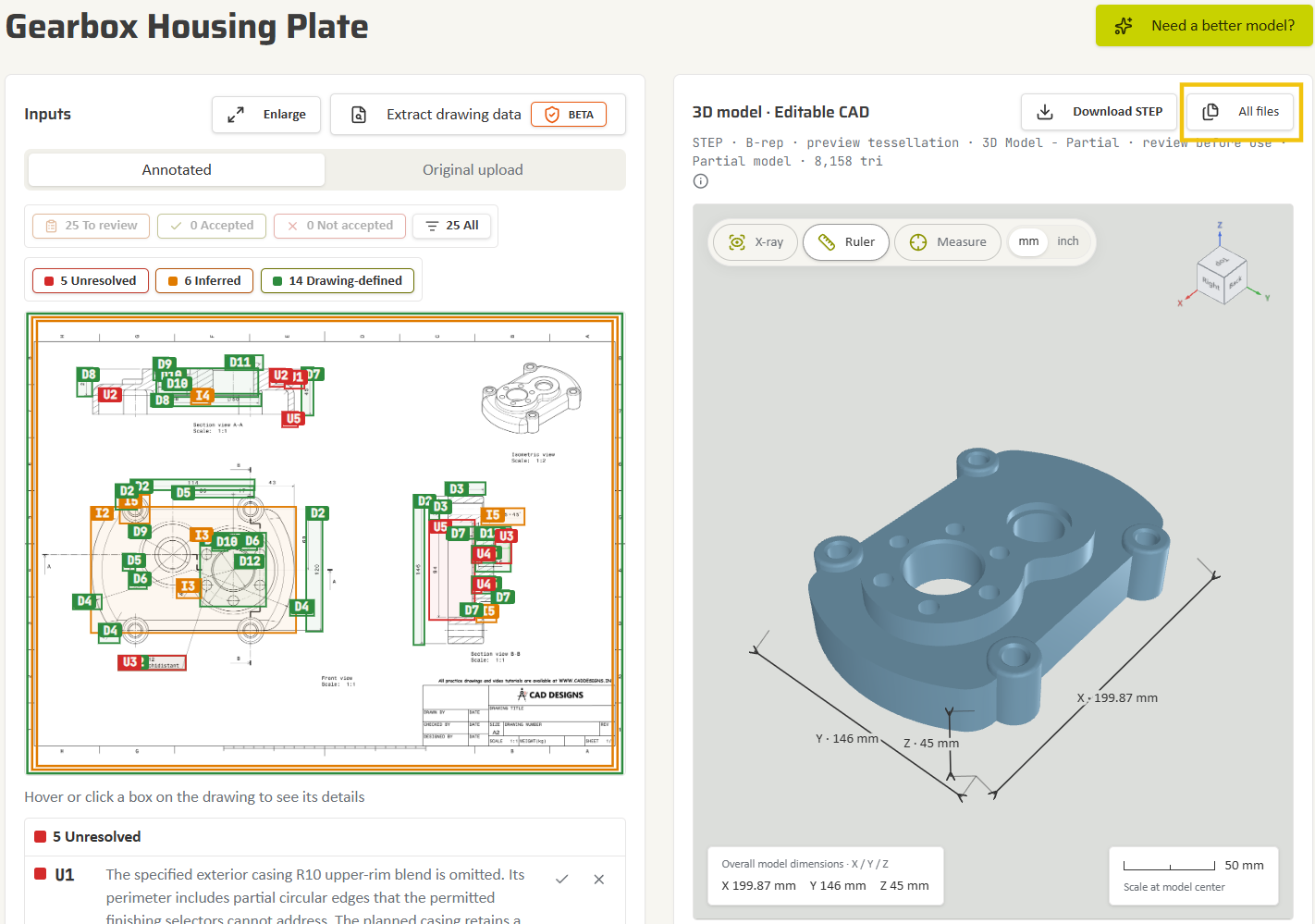
Click “All files” above the 3D viewer
On the part page, click “All files” at the top right of the 3D model panel, next to “Download STEP”.- The “Download files” dialog opens with one tab per candidate.
- “Download STEP” only downloads the file and does not send anything to Onshape.
- 9
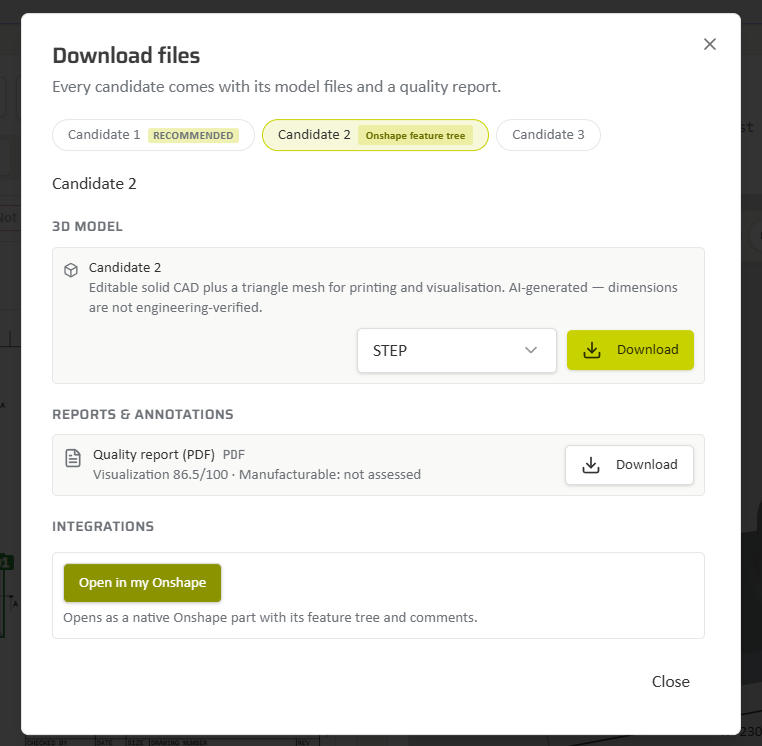
Pick the “Onshape feature tree” candidate and send it
Select the candidate tab marked with the “Onshape feature tree” badge.- Under “Integrations”, click “Open in my Onshape”.
- Voluminate saves the model to a new document in your Onshape account and adds the drawing annotations as Onshape comments automatically.
- When the delivery is done, click “Open in Onshape” to open the document in a new tab.
- 10
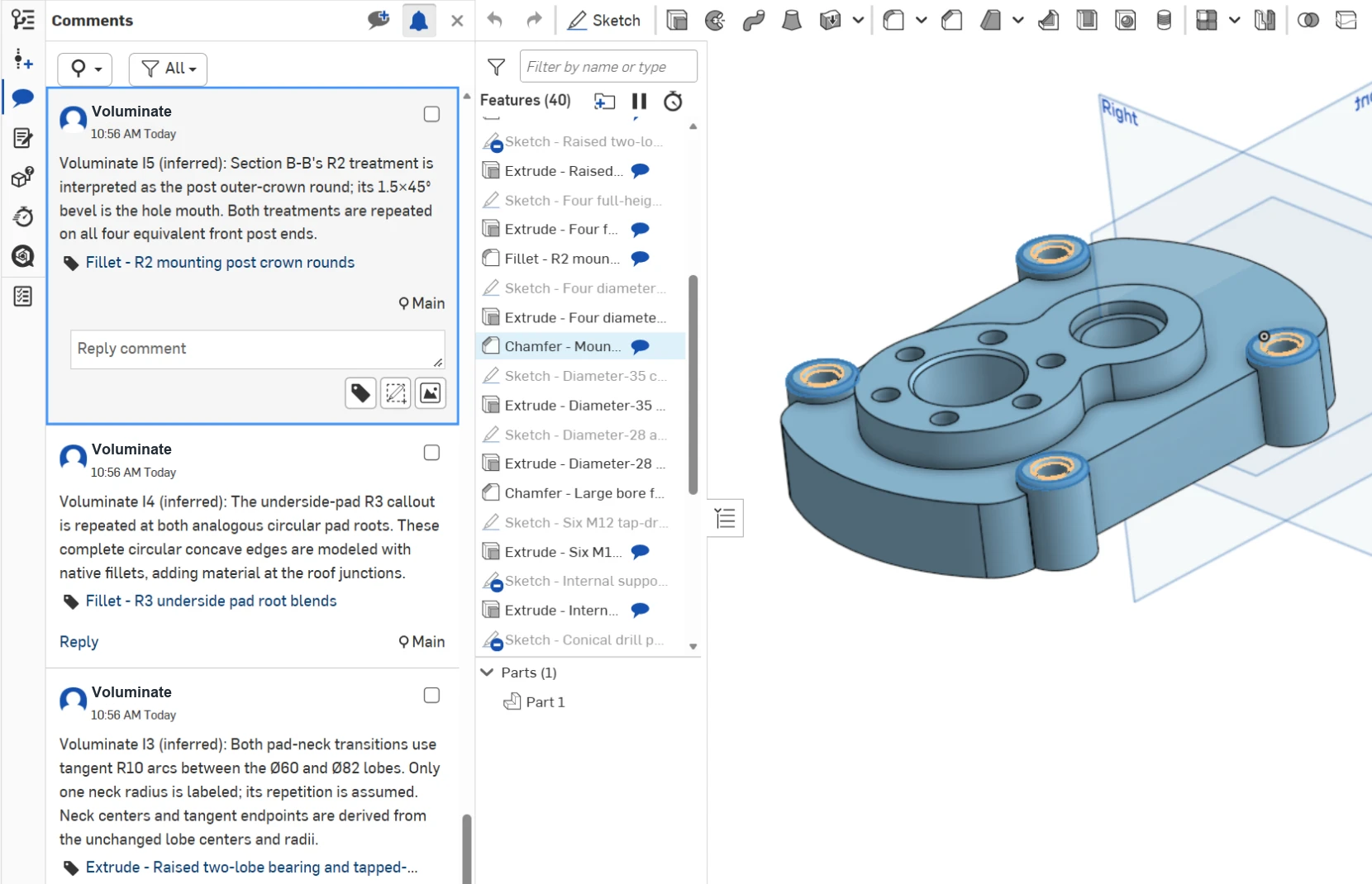
Review the model and automatic annotation comments
Inspect the Part Studio and its native feature tree.- Open the Comments panel to review the drawing annotations that Voluminate added automatically.
- The annotations include drawing-defined details, inferred geometry and items needing review.
- You do not need to create these comments yourself.
Imported as STEP instead? If a model cannot be built as a native feature tree, Voluminate automatically delivers it to Onshape as a STEP import. You still get the geometry in your document and can edit it with Onshape's direct-modeling tools.